
Matrix and mapping
The matrix
Section titled “The matrix”The matrix has one row per service and one column per environment, in promotion order (dev, staging, prod). Each cell shows the versions running there, with replicas and the targets they run on. The last column shows the newest upstream version the service’s policy accepts.
Filter the matrix by typing above it (press / to jump there): every word must appear in the service,
its owner, a version, a target or a badge, so team-payments end finds that team’s services on an end-of-life
release. Only with drift hides the rest. The filter is part of the address, so a filtered matrix can be
bookmarked or shared. Time travel shows the matrix as of a past moment; Export CSV downloads the inventory.
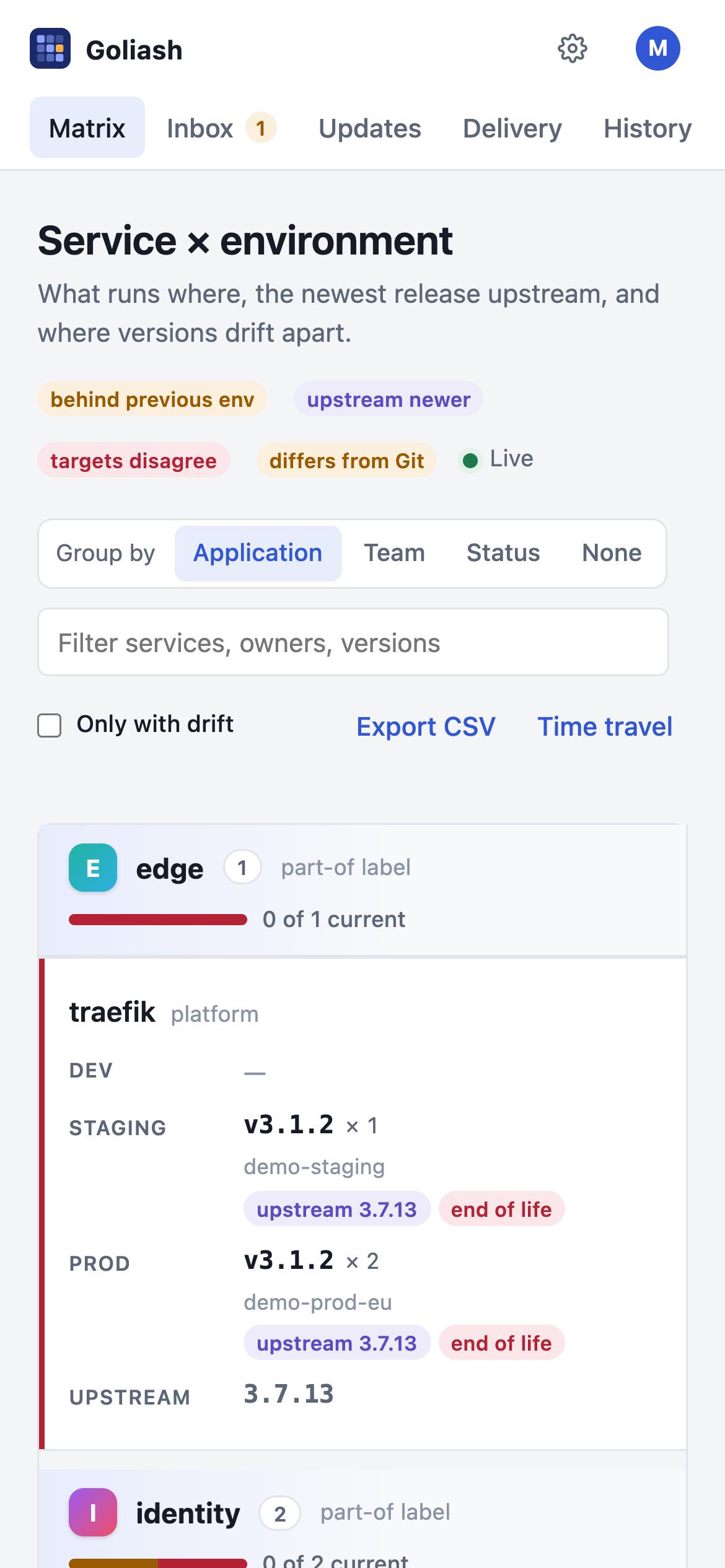
On a phone the matrix turns into one card per service, with each environment as a row inside it, so nothing scrolls sideways. The same filter and drift switch work there.
Badges in a cell:
| Badge | Meaning |
|---|---|
| behind env | This environment runs an older version than the one before it. |
| upstream x.y.z | A newer release exists, at least as large a jump as the policy tracks. |
| targets disagree | Targets of this environment run different versions. |
| stale data | The agent stopped sending heartbeats, or there has been no snapshot for three poll intervals (at least 15 minutes). |
During a rollout, both versions show with their replica counts. The matrix updates live as snapshots arrive.
Group by above the matrix puts services under headings: Application (default), Team (the service’s owner) or Status (needs attention, behind, up to date), or None for one list. A service’s application is the one most of its workloads belong to (see below how it is found). Each heading shows how many of its services are up to date, as a bar, and the filter hides headings with nothing left under them. The choice stays in the link, also while looking back with time travel.
One image, several applications
Section titled “One image, several applications”A service such as postgres or redis often serves several applications, each with its own database on its own
version. When two applications run a service in one environment, Goliash compares its versions within each
application: the matrix shows one line per application (postgres in auth, postgres in chat), and drift
(behind the previous environment, targets disagreeing, behind upstream, end of life) is worked out per line. Postgres
16 in one application and 18 in another is not drift; an application whose production is behind its own staging
still is. Upstream releases and the version policy stay one per service, and notifications name the application.
This depends on knowing the application (see below): Compose projects, Helm releases and app.kubernetes.io/part-of
work out of the box, and a Nomad job counts as an application of its own.
Search
Section titled “Search”Ctrl+K (⌘K on a Mac), or Search in the header, jumps to any service, application, target or page: type a
few letters in order (pgv finds cefiro-pgvector), move with the arrow keys and press Enter. Services and
applications carry their state’s colour. With nothing typed, the last five places you picked come first, marked recent (kept in this
browser only).
? lists every keyboard shortcut. g followed by a letter goes straight to a page: g m the matrix, g t tiles, g u updates, g i the inbox, g d delivery, g h history, g n notifications.
View → Tiles draws the matrix the way the logo does: a navy board of rounded cells, one per application (or team, or status), coloured like the logo’s cells. Bright means up to date, dimmer means behind, faint means there is nothing to compare with, and warm means it needs attention: end of life, or targets disagreeing.
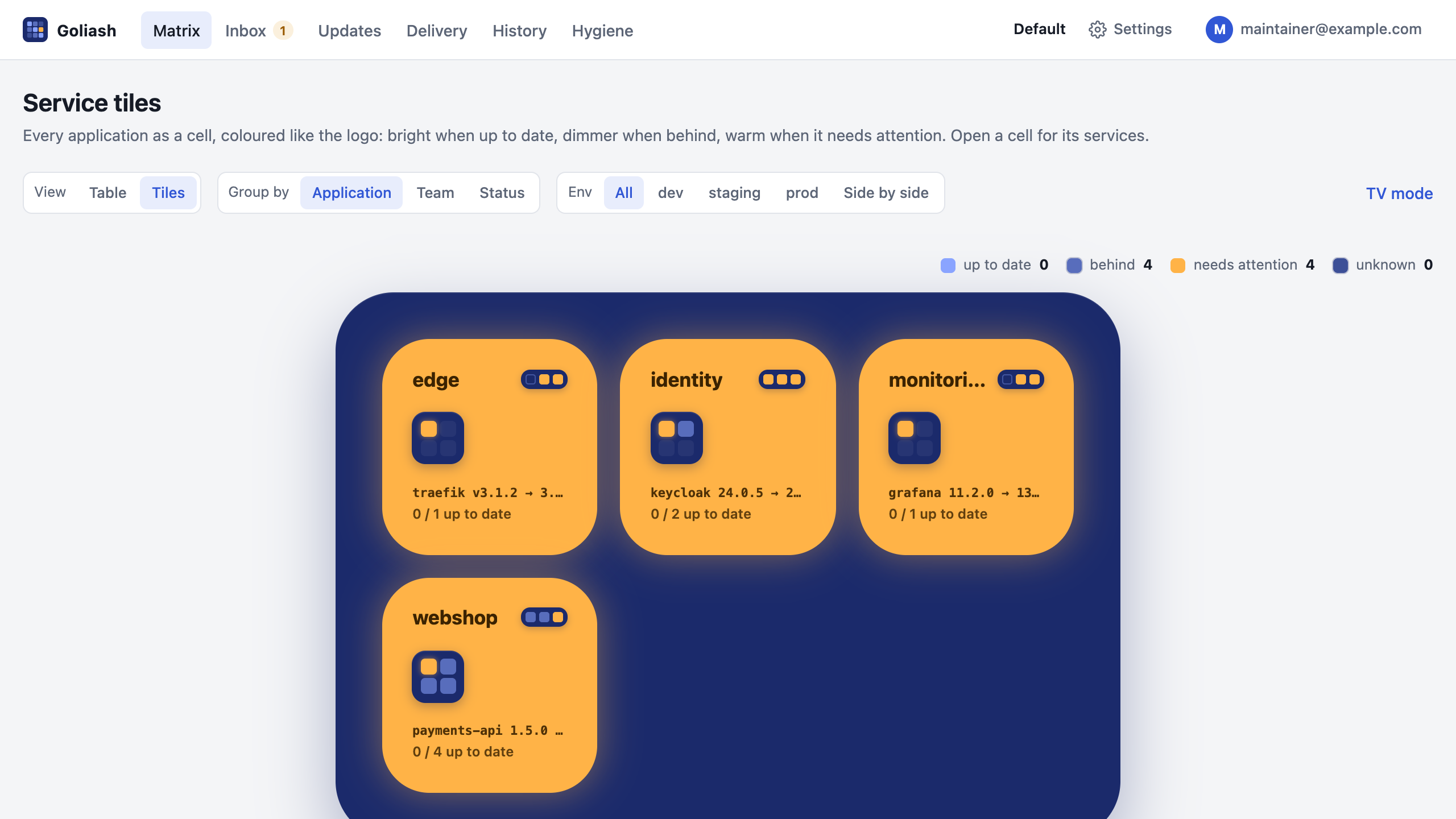
- Each cell shows its services as a small logo, one cell per service in its colour, its most urgent upgrade, how many services are up to date, and a strip with one square per environment in its state there. Applications with four services or more take a double cell once a board has six or more.
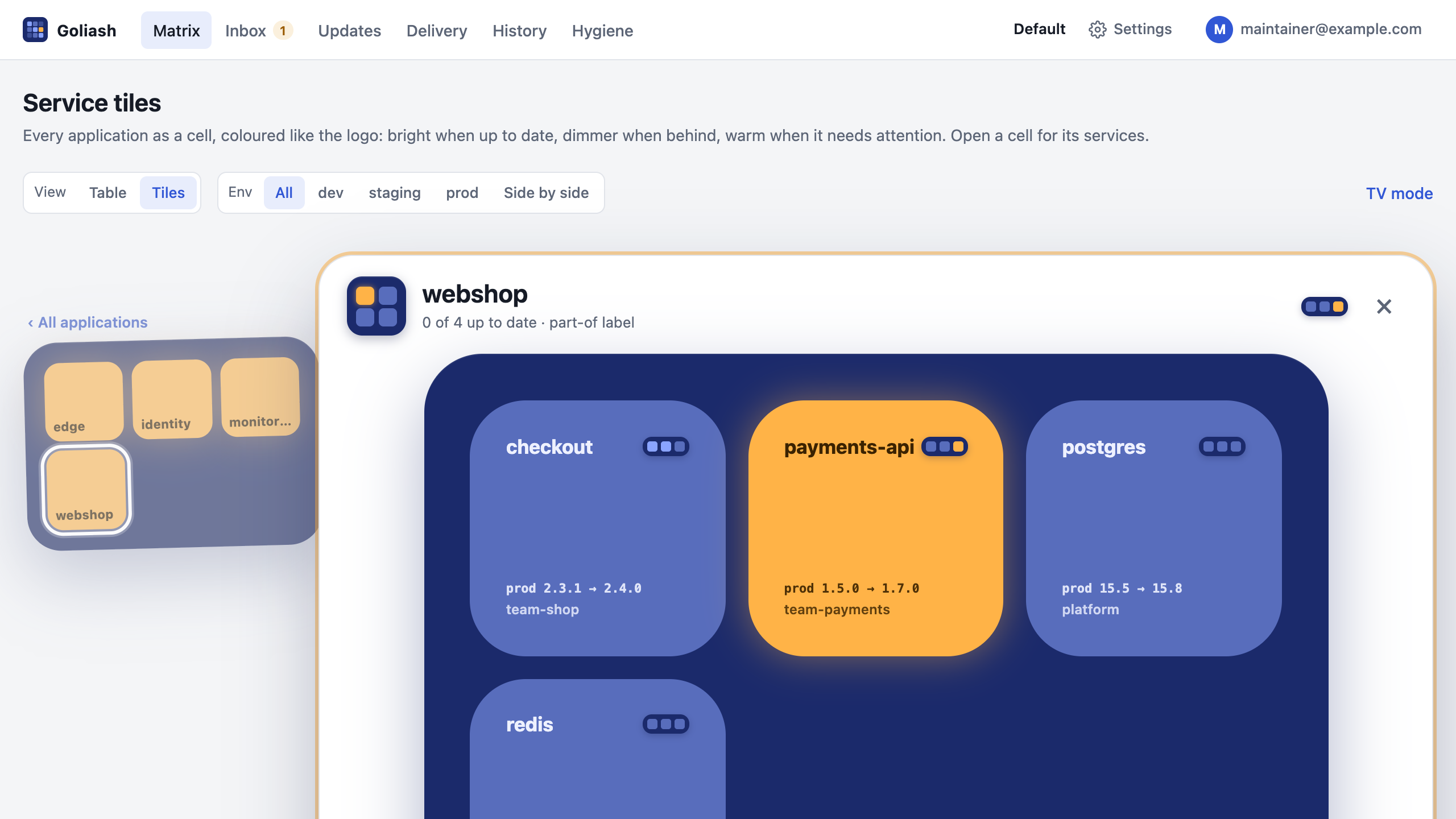
- Open a cell and its board is laid over the global one like a card, one cell per service; the global board stays behind, dimmed, with the application marked, and its cells open the other applications directly. × or Escape lays the card down again. Arrow keys move between cells, Enter opens one.
 Open a service for its versions per environment, the newest release with its notes, its drift and a link to
its page; Escape closes it.
Open a service for its versions per environment, the newest release with its notes, its drift and a link to
its page; Escape closes it.
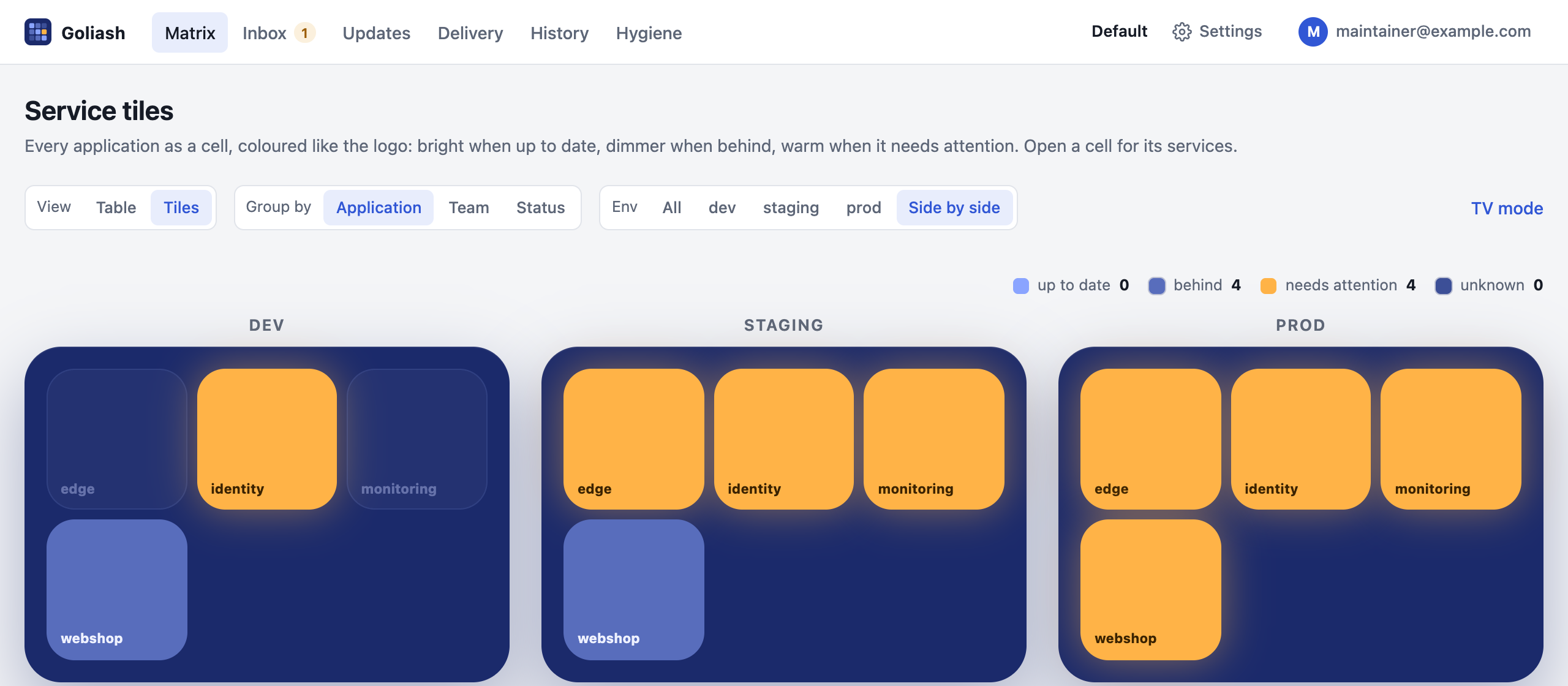
- Env colours the board for one environment. Side by side draws one board per environment with every application in the same place, so you can see at a glance where prod lags behind staging.
- The board follows changes live, and a cell whose state changed pulses. TV mode hides the header and fills the
screen, for a wall display; Cycle environments there shows every environment in turn, then all of them side by
side, 30 seconds each (
?tv=1&cycle=60for another pace). - The browser tab’s icon is the logo coloured by the workspace: as many of its nine cells as needed turn warm or dim, so a pinned tab tells you when something needs attention.
- The view you used last is remembered:
/opens the tiles until you choose Table again.
One target at a glance
Section titled “One target at a glance”Click a target’s name under Settings → Agents and targets to see what runs on that cluster or host: a ring with the share of workloads that are up to date, counts of services, drift and workloads waiting in the inbox, deploys per day over thirty days, and every workload as a card, one column per application. A card shows the version (and a newer acceptable one), the image, a dot per running replica, drift badges and its service; its colour says how current it is (green up to date, amber behind, red end of life or targets disagreeing, grey not mapped), and problems come first. The filter above the cards matches names, services, versions and badges. Below, What changed here lists the latest deploys on this target.
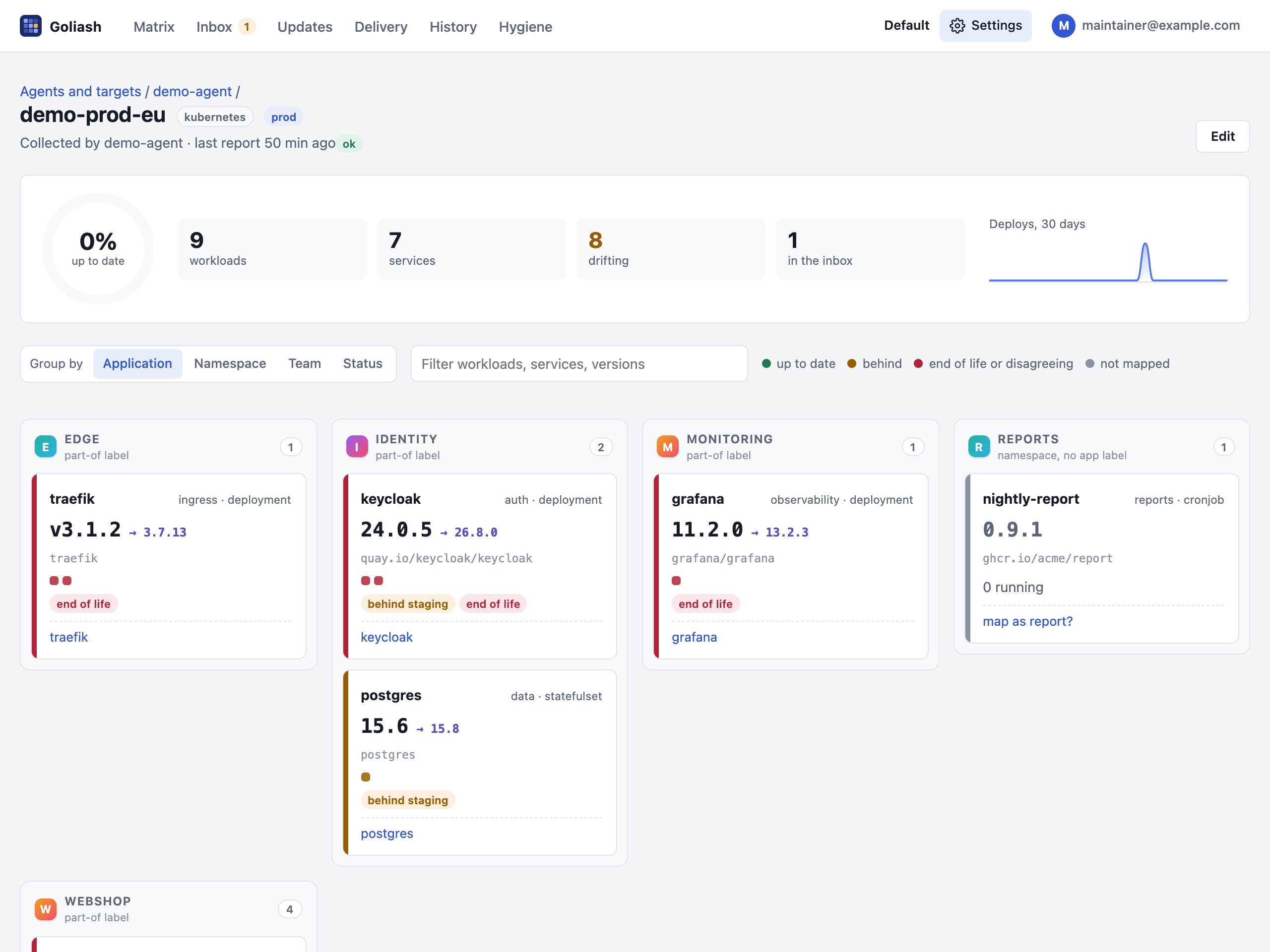
Group by arranges the columns, and the choice stays in the link:
| Group by | Columns |
|---|---|
| Application (default) | What the workload belongs to, from its labels (below). |
| Namespace | The Kubernetes or Nomad namespace, the Compose project or the Swarm stack. |
| Team | The owner of the workload’s service; unmapped workloads and services without an owner go under no owner. |
| Status | Needs attention, behind, not mapped, up to date. |
A workload’s application is the first of these labels it has: the workspace’s own label key (set under
Settings → Users → Applications, for example example.com/app), goliash.app, app.kubernetes.io/part-of,
app.kubernetes.io/instance (the Helm release), release, com.docker.compose.project and
com.docker.stack.namespace. Without any of them, a Nomad job’s name stands in, else its namespace.
Platforms such as Dokploy and Nomploy name what they deploy <project>-<part>-<6 random characters>. Goliash drops
the random part (cefiro-db-wruzyw is cefiro-db), and groups the parts of one project under its name: cefiro,
cefiro-db and cefiro-redis appear together as cefiro, with the parts listed under the heading. Names from
labels are never changed. The column caption says where the
name came from, so a column captioned namespace, no app label is a hint to label those workloads. A new label
key applies from each target’s next snapshot.
Looking back, and exporting for audits
Section titled “Looking back, and exporting for audits”Open Time travel above the matrix and pick a date and time to see what ran then: “what was in prod on 12 September at 14:00?”. Goliash keeps when each version ran for 400 days, so the answer is right even after versions moved on and back. Drift and upstream releases describe now, so they are not shown for the past.
Export CSV downloads every container that runs (or ran at that time), sidecars included, with environment, target, workload, image, tag, digest, replicas and when it was first seen: an asset inventory for ISO 27001 or SOC 2 audits. The same is available from the CLI and the API:
goliash matrix -at 2026-09-12T14:00goliash inventory -csv > inventory.csvgoliash inventory -at 2026-09-12T14:00 -csvcurl -H "Authorization: Bearer $GOLIASH_TOKEN" "https://goliash.example.com/api/v1/inventory?format=csv&at=2026-09-12T14:00"Image hygiene
Section titled “Image hygiene”Image hygiene (linked above the matrix, with the number of warnings) lists running images that make “what runs” hard to know or to trust, sidecars included:
| Finding | Meaning |
|---|---|
| moving tag | latest, stable, main or no tag: the version cannot be known, and a restart may pull something else. |
| retagged | The same repository and tag run as different images (digests): the tag was pushed again. |
| untrusted registry | The image comes from outside GOLIASH_ALLOWED_REGISTRIES (e.g. ghcr.io/acme,docker.io/library). |
| unpinned (info) | No digest is known for the image. |
goliash hygiene, GET /api/v1/hygiene and goliash_image_hygiene_findings{kind} in /metrics show the same.
Compose files are left out: they declare tags, not what runs.
Services, environments and targets
Section titled “Services, environments and targets”- A target is one thing a collector reads: a Kubernetes cluster, an ECS region, a Nomad region, a Swarm or a Docker host. Each target belongs to one environment.
- An environment has a position that sets the promotion order: lower comes first (dev 10, staging 20, prod 30).
- A service is what you deploy, wherever it runs. Running workloads are mapped to services.
A workload can override its environment with the label goliash.env, for example when one cluster hosts both
staging and prod namespaces.
A service that runs nowhere any more can be deleted from its page by an admin, with its policy, releases, mapping rules and acknowledgements; its history stays. Admins rename and reorder environments on the Agents page (drift is re-evaluated with the new order), and delete one once no target belongs to it. Edit on a target changes its environment, settings and poll interval; its collector picks the change up with the next configuration poll.
How workloads map to services
Section titled “How workloads map to services”Each running workload goes through these steps, and the first match wins:
- Ignore rules. Images or containers you chose to ignore.
- Labels.
goliash.service, elseapp.kubernetes.io/name. The service is created when it does not exist yet. - Rules. Lowest priority number first. The inbox creates workload-name rules at priority 50 and image rules at
100, so a rule for one workload wins over a rule for its image.
goliash rule createdefaults to 100. - The inbox. Everything else waits there with a suggested name, taken from the image.
The labels are Kubernetes labels, ECS tags, Nomad job meta, or Swarm and Docker labels.
Within a workload, the main container carries the version. It is the container named by the goliash.container
label, else one named like the workload or service. Known sidecars such as istio-proxy, linkerd-proxy, envoy
or datadog-agent are skipped.
The inbox
Section titled “The inbox”The inbox groups unmapped workloads by image.
- Map all maps every workload running the image to a service at once and adds an image rule, so new workloads with that image map by themselves.
- Map only this is for an image that runs as several services, for example one image deployed as
webandworker. It maps a single workload and adds a workload-name rule, which takes precedence over image rules. - Ignore this image removes it from the inbox at once and stops tracking it from the next snapshot.
Rules can also be created from the CLI:
goliash rule create -match image_repo -pattern 'ghcr\.io/acme/pay.*' -service paymentsgoliash rule create -match workload_name -pattern 'worker' -service jobs -priority 50goliash rule create -match label -pattern 'team=payments' -service paymentsgoliash rule create -match ignore -pattern 'docker\.io/library/busybox'Patterns are regular expressions that must match the whole value. The inbox page lists every rule; deleting one returns the workloads it matched to the inbox with the next snapshot, unless another rule or a label maps them.
History
Section titled “History”Every snapshot is compared with the previous one of the same target. The differences become events:
| Event | When |
|---|---|
deployed |
A workload appears. |
version_changed |
A workload runs a different tag. A changed digest under the same tag is noted as a retag. |
removed |
A workload disappears. |
new_release |
An upstream release newer than everything known appears. |
drift_detected, drift_resolved |
Drift is announced, or ends. |
agent_stale |
An agent stops sending heartbeats. |
The first snapshot of a target is a baseline and creates no events. When a snapshot is incomplete, for example because one namespace was forbidden, missing workloads are not treated as removed.