
Widgets
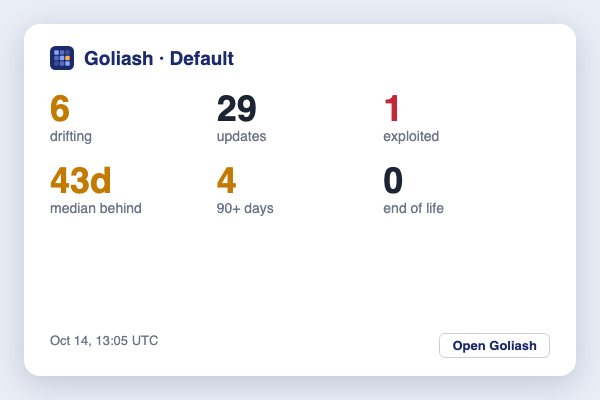
The numbers that matter at a glance, without opening Goliash: services drifting, updates waiting, how many of them run an image with a vulnerability exploited in the wild, the median days production runs behind a newer release, how many for 90+ days, and end of life. A tap or click opens the Security page.
iPhone and iPad
Section titled “iPhone and iPad”Apple only lets installed apps put widgets on the home screen, so the widget runs in Scriptable, a free app that makes widgets from a short script.
- Integrations → Widgets → Create a viewer token (admins). The token can only read; revoke it any time under Workspace settings.
- On the iPhone, open that page and tap Download Goliash.js: the server’s address and the token are already in it. Open the file in Scriptable (Share → Scriptable); it is added as Goliash. (On a computer, Copy and paste it into a new script in Scriptable instead.)
- Long-press the home screen, +, Scriptable, pick a size and add it; then tap the widget and choose Goliash.
What it runs under the button shows the script: it reads /api/v1/summary with the token and draws the
numbers, nothing else.
Every size works: small shows the median exposure, drift and end of life; medium adds updates, exploited vulnerabilities and 90+ days; large adds services, how many run behind and stale targets; on the lock screen it is one line. iOS refreshes widgets about every 15 minutes, as it sees fit. The phone must reach Goliash’s address: over the internet, or through a VPN to an internal one.
Mac menu bar
Section titled “Mac menu bar”macOS keeps Notification Center widgets for installed apps too, so on a Mac Goliash sits in the menu bar instead, through SwiftBar or xbar (both free):
- With the token from above, Integrations → Widgets → Download goliash.15m.sh (server and token filled in).
- Move it into the plugin folder SwiftBar or xbar asked for on first start, and run
chmod +x goliash.15m.sh.
The menu bar shows Goliash with a count: red for exploited vulnerabilities or end of life, amber for services
drifting, a ✓ when all is quiet. Its menu lists the numbers, each opening the page behind it, and refreshes every
15 minutes (the 15m in the name). It needs only curl and plutil, which every Mac has.
Windows 11
Section titled “Windows 11”Installed from Microsoft Edge, Goliash brings its own widget to the Windows 11 Widgets board:
- Open Goliash in Edge, choose App available → Install in the address bar (or Apps → Install Goliash in the menu), and sign in in the app’s window.
- Open the Widgets board (Win+W), + Add widgets, and add Goliash.
It uses the app’s sign-in, so it needs no token; when that sign-in ends, the widget asks you to open Goliash and sign in again. It refreshes every 15 minutes and whenever the board opens. Windows shows widgets of installed web apps only from Edge, and the Widgets board’s own settings must allow them.
For anything else
Section titled “For anything else”Both widgets read GET /api/v1/summary (see the API reference), with a viewer token or a
session:
curl -s -H "Authorization: Bearer $GOLIASH_TOKEN" https://goliash.example.com/api/v1/summary{"workspace":"Default","production":"prod","services":18,"drifting":6,"updates":29,"exploited":1,"behind":14, "median_exposure_days":43,"behind_90_days":4,"end_of_life_passed":0,"stale_targets":0, "generated_at":"2026-10-14T13:05:00Z","generated":"Oct 14, 13:05 UTC"}The same call feeds a wall screen, a status bar (SwiftBar, xbar, Waybar), a Home Assistant sensor or a Stream Deck key.